Write a UI modification script
Write a UI modification as a script when rules can't express what you need, such as a Jira lookup, the current user or their groups.
Applies to: Script Master for Jira · Cloud
Before you begin
- Jira permission: the Administer Jira global permission.
- App permission: a valid Script Master license.
- A test space where you can open the form the script changes.
Create the script
-
In Script Master, select the UI Modifications tab, then select Create UI modification. The Create UI modification dialog opens.
On a site with no UI modifications yet, select Write a script and skip the next step.
-
Select Script, then select Continue with a script. The editor opens with a starter comment.
-
Enter a Name, then pick the Spaces, Work types and Forms in Where it runs. For a first test, pick only your test space.
-
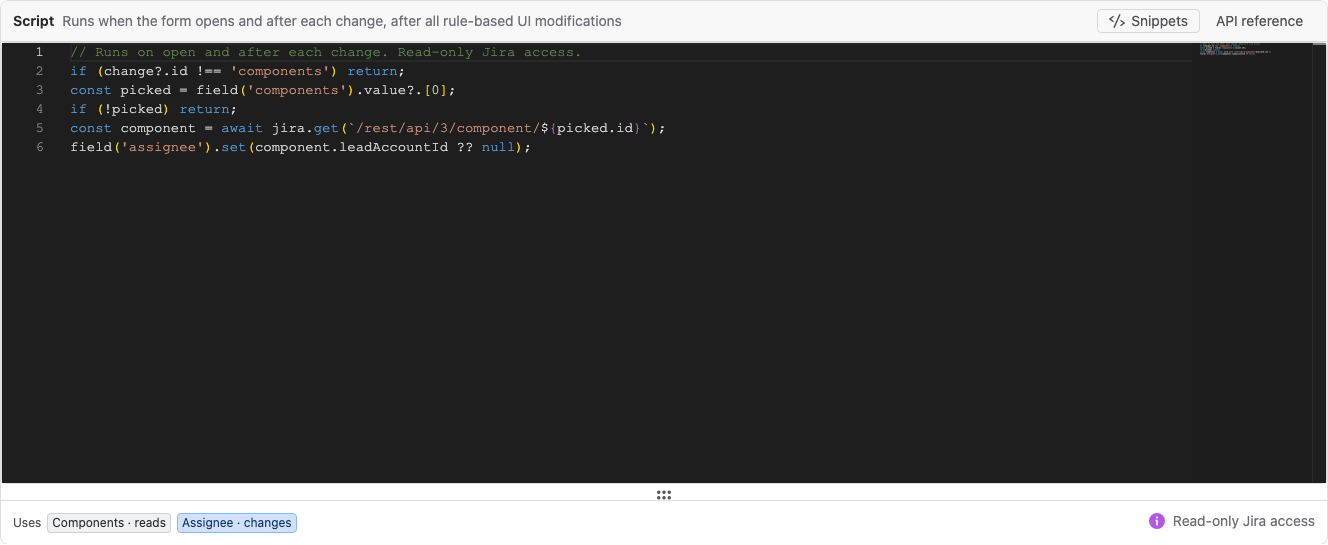
Write the script. To start from an example, select a snippet under Start from a snippet, or select Snippets.
-
Turn on Enable, then select Save. The script must compile before you can save.
Result: the script runs on matching forms in the spaces you picked.
What the editor shows
- Snippets opens ready-made examples. API reference opens a summary of the script API.
- Under the code, Uses lists every field the script names, and whether it reads or changes it.
- A field ID that doesn't exist on your site shows as unknown field, next to Check the field ID.
- If the script doesn't compile, the line and the error appear under the code. Select the button with that line, for example Go to line 4, to jump there.
- Scripts can only read from Jira, with
jira.get. If a script calls anything else onjira, the editor won't save it.
A script runs in the browser of every person who opens a matching form, so they can see its code. Never put a token, password or other secret in a script.
Test a script
Try it doesn't run scripts. Scripts run on the real form only.
- Check that Where it runs covers only your test space, and that you saved the UI modification with Enable on.
- In the test space, open the form, for example the Create dialog.
- Change the fields your script reacts to, and check the result.
- If the form doesn't change as expected, go back to the editor. A failure shows at the top, with the line of the script. See Failures on forms.
When the script works, add the other spaces in Where it runs and save again.
Related
- UI modification script API:
field,change,contextandjira.get, with examples. - Convert rules to a script: start a script from existing rules.
- Code Editor: shortcuts and features of the editor.