A panel, gadget or macro shows "couldn't load"
What the failure messages on fragments, gadgets and macros mean, and how to fix the script behind them.
Symptom
Where a fragment, gadget or macro should be, people see one of these:
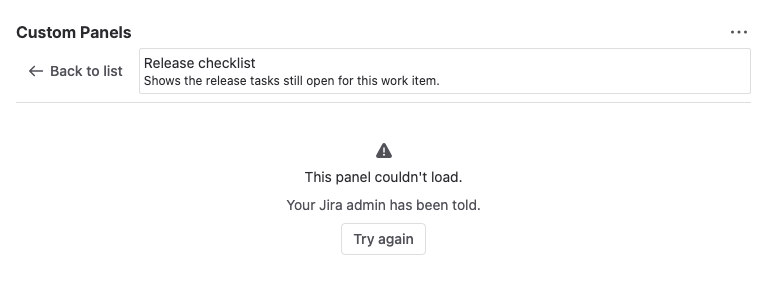
- This panel couldn't load. and Your Jira admin has been told., with a Try again button. The word depends on where it is: panel, action, item, page, gadget or macro.
- Part of this panel didn't work. above content that did load.
- Nothing, or content that never finishes loading. Jira admins and Confluence admins see The panel didn't finish loading within 20 seconds.
Jira admins and Confluence admins see more: This panel failed at line and the line number, the error, and an Open in Script Master button.
The script failed in the browser
Cause: The fragment's, gadget's or macro's code threw an error or had a promise rejected that nothing caught. Script Master replaced it with the message, or showed the message above what did load, and recorded the failure for admins.
Solution: As a Jira admin or Confluence admin:
- Open the page where it fails and select Open in Script Master in the message.
- Read the error and the line on the item's failure banner.
- Fix the code. The live preview shows whether the fix works before you save.
- Select Save.
People see the item working again the next time they load it. See Failures.
The content didn't finish loading
Cause: The fragment, gadget or macro took longer than 20 seconds to show its content, for example because a request never answered. People who aren't admins see no message. Script Master records it as a failure.
Solution: As a Jira admin or Confluence admin, find the slow step:
- Open the item in Script Master and run it in the live preview.
- Add
console.log()calls before and after each request to see which one doesn't answer. - Fix or remove that request, or show the content before slow requests finish.
- Select Save.
See What people see.
It works for admins but not for others
Cause: The script runs with the permissions of the person viewing it. A request that works for you can fail for someone without access to the same data.
Solution: Check the response status of each request in the script, and show a plain message when a request isn't allowed. See Forge bridge API for browser scripts.
Related
- Failures: what Script Master records and who sees it.
- Permissions: whose permissions each kind of script uses.