Create a field in Jira settings
Create a FieldCraft field of any type from Jira's fields page, when no recipe fits what you want to measure.
You create the field in Jira, add it to your spaces, and then configure it in FieldCraft.
Before you begin
-
Jira permission: Jira admin (the Administer Jira global permission).
-
FieldCraft: installed, with an active license.
-
Pick the field type that fits your value. See Field types. You can't change a field's type later.
Create the field
-
Go to Settings (⚙) > Work items > Fields. Jira's fields page opens.
-
Select Create new field. The Create field panel opens.
-
In Field type, select the FieldCraft type, for example FieldCraft: Time Between. Every FieldCraft type starts with
FieldCraft:.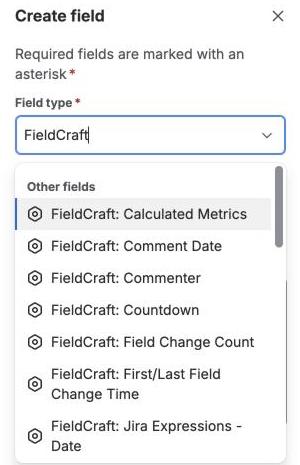
-
In Name, enter the field name, for example
Cycle time. You can use up to 255 characters. -
Optional: in Description, say what the field shows. Jira shows it next to the field.
-
Select Create.
Jira creates the field.
Add it to your spaces
Add the field to the field schemes or screens of the spaces that should show it.
-
For field schemes, go to Settings (⚙) > Work items > Field schemes.
-
For screens, open the Fields tab in FieldCraft and select Associate to screens in the field's ••• menu.
Team-managed spaces choose their fields in each space's own settings.
Configure the field
A new field calculates with its type's defaults until you save a configuration.
-
Go to Settings (⚙) > Marketplace apps > FieldCraft: Custom Fields. The Fields tab lists the new field with a Not configured lozenge.
-
In the field's ••• menu, select Edit configuration. The field's configuration page opens.
-
Choose the settings, and select Save.
Result: The field calculates on every work item that changes. To bring older work items up to date, use the Update suggestion on the Calculation tab. It also replaces values calculated with the type's defaults before you saved.
Jira expression, Rollup and Parent Field types also need you to acknowledge app access before they calculate.
Related
-
Configure a field: every part of the configuration page, and contexts.
-
Create a field from a recipe: a faster start with settings already chosen.
-
Recalculate existing work items: fill in values on older work items.
-
The field doesn't appear on the work item: what to check when the field is missing.