How values stay current
This page tells you when FieldCraft calculates a value, and how current the values you see in search, boards and exports are.
FieldCraft calculates every value on the server, as the app. Your browser never calculates or writes a value.
Jira stores each value in the field. So you can use it in JQL, boards, dashboards and CSV exports without opening the work item.
When a work item changes
FieldCraft recalculates a work item's fields when someone:
-
creates or edits the work item
-
adds or deletes a comment
-
adds or removes a work item link
-
adds, edits or deletes a work log, for work-log counts and for Rollups of time spent or remaining estimate
FieldCraft recalculates only the fields that read what changed. For example, a status change updates Time in Status, but not a comment count.
FieldCraft writes a value only when it changed.
You see no entry in the work item's history for these writes, and nobody gets a notification.
When you drag a card to a new rank on a board, FieldCraft starts no calculation.
When a sprint's end date or state changes, or a version is released or its date changes, FieldCraft recalculates the Countdown fields that count to it.
You turn this on and off with Recalculate when work items change on the Settings tab. See FieldCraft settings.
Parents and children
With Update parents and children on, a change on one work item also updates related work items:
-
A Rollup on a parent updates when a child's value, status or work type changes.
-
Counts and Jira expressions on a parent update when you add, remove or move a child.
-
Expressions that read sub-tasks also update when a child's status changes.
-
A Parent Field value on the children updates when the parent changes. Fields that show a grandparent's value reach the grandchildren too.
-
Fields that read linked work items update when a linked work item's status, or the field they show, changes.
A parent waits until its children have been quiet for 20 seconds, so a bulk edit causes one recalculation.
It recalculates at most 5 minutes after the first change.
When you open a work item
The work item view shows the stored value. FieldCraft calculates it again when:
-
the field has no value for this work item yet, or the last attempt failed
-
the field's configuration changed since the last calculation
-
the value is older than 7 days
-
the value is older than 15 minutes, for a field that reads other work items
Fields that read other work items are Parent Field, Jira expressions, Rollup, and Calculated Metrics that count watchers, votes or open linked work items.
Time-based values that still count are always exact on the work item view.
If a calculation takes longer than 10 seconds, you see the stored value and the new one arrives in the background.
When a calculation fails, the field keeps its last value.
Hover over the value to see when FieldCraft calculated it, and why.
Hourly refresh
Some values grow with time: Time in Status, Time Between until now, and Countdown.
The hourly refresh moves them forward for you in search and exports.
It reads nothing from Jira and writes only values that changed. So nights and weekends on a work calendar cost nothing.
| Value | Refreshed |
|---|---|
| Under 7 working days | Every hour |
| 7 to 30 working days | Every 6 hours |
| Over 30 working days, or the work item is in a Done status | Once a day |
FieldCraft measures a Countdown by its distance from the deadline, so it refreshes every hour as the deadline nears.
Values on existing work items
A new field, or a changed configuration, doesn't touch work items that nobody changes.
Their values fill in when you recalculate existing work items.
FieldCraft suggests this for you on the Calculation tab.
What search, boards and exports show
They show the value stored in Jira. How current it is depends on what changed:
| What changed | Search, boards and exports show it |
|---|---|
| The work item itself | Within seconds |
| A child, for the parent's value | 20 seconds after the last change, at most 5 minutes |
| Time passing, for a counting value | At the next refresh: hourly, 6-hourly or daily |
| Watchers or votes, which send no event | When someone opens the work item, or after a recalculation |
| Anything, with Recalculate when work items change off | When someone opens the work item, or after a recalculation |
The Calculation tab
The Calculation tab shows you what FieldCraft does on your site.
To open it, go to Settings (⚙) > Marketplace apps > FieldCraft: Custom Fields and select Calculation.
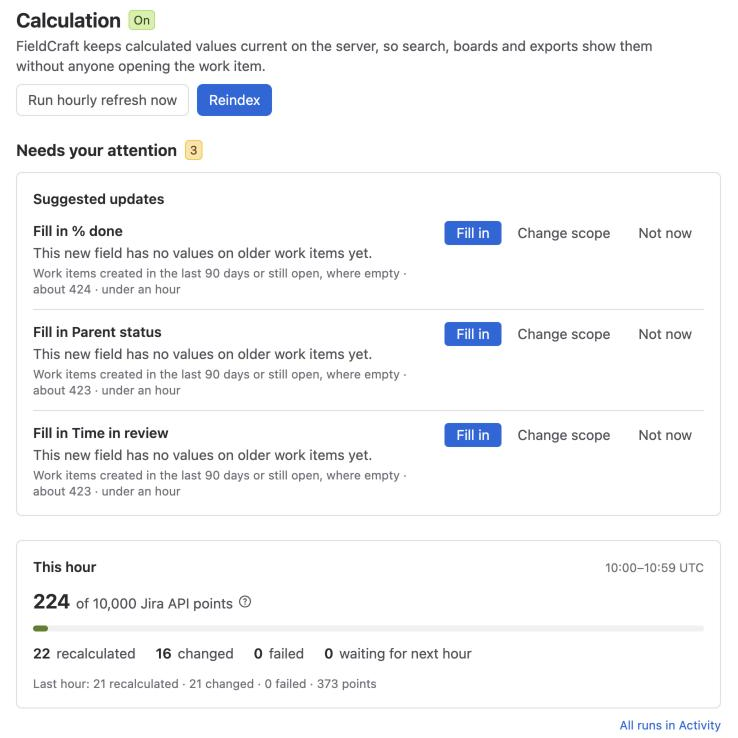
Header
The heading shows On or Off.
Reindex opens the dialog to recalculate existing work items.
Run hourly refresh now starts a refresh right away.
You see it only while background calculation and the hourly refresh are on.
When background calculation is off, a Background calculation is off banner offers Turn on.
Needs your attention
This section lists what waits for you:
-
Fields that wait for your review. These fields read data with the app's access. Select Acknowledge to start calculating one. See Acknowledge app access.
-
Suggested updates. After you create a field, save a configuration or change a work calendar, FieldCraft offers to update older work items. See Recalculate existing work items.
When nothing waits, you see All values are current.
This hour
The card shows how many of the 10,000 Jira API points your site used this hour.
You see how many values FieldCraft recalculated, changed and failed, and how many are waiting for next hour.
A line below shows the same totals for the last hour. See Hourly calculation budget.
Status
The Status card shows whether Recalculate on changes, Parents and children and Hourly refresh are on.
It also shows the number of calculated fields and the time of the last hourly refresh.
Change in Settings opens the Settings tab.
Related
-
Recalculate existing work items: fill in or update values on older work items.
-
Hourly calculation budget: how much background work fits in an hour.
-
Follow runs on the Activity tab: see every refresh and reindex, and why values failed.
-
Search, boards or exports show an old value: what to check when a value lags.