Check a field on a work item
See the value a field would get on one work item with the settings on the page, before you save them.
FieldCraft writes nothing to the work item and notifies nobody. Every configuration page offers the check, except T-Shirt Size, whose values people pick themselves.
Before you begin
-
Jira permission: Jira admin (the Administer Jira global permission).
-
FieldCraft: installed, with an active license.
-
You know the key of a work item the field applies to, for example
KAN-42.
Check the value
-
Open the field's configuration page. See Configure a field.
-
Change the settings you want to try. The check uses the settings on the page, saved or not.
-
At the bottom of the page, turn on Check it on a work item. A work item box and a Check button appear.
-
Enter the work item key, for example
KAN-42. -
Select Check.
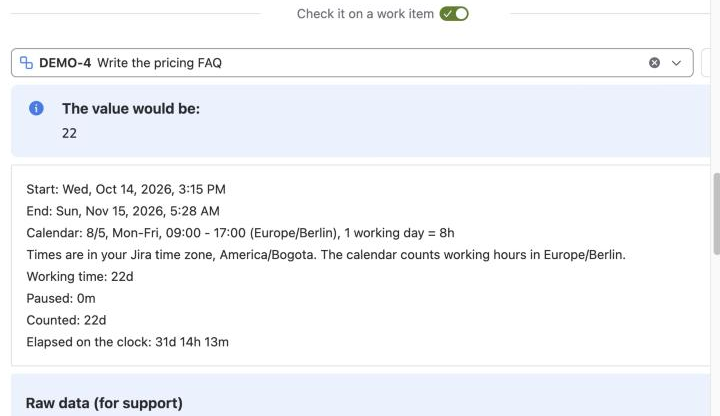
Result: A panel titled The value would be: shows the value for that work item.
If the field would stay empty, the panel reads empty, no value on this work item.
Some field types add detail lines below the value, such as the status visits that a Time in Status field counted.
FieldCraft remembers the last work item key you checked.
If the calculation fails
You see The calculation failed, with the reason Jira gave.
Check the settings against the message, or try another work item.
Send raw data to support
Below the result, Raw data (for support) shows what FieldCraft read and calculated.
-
Select Copy raw data.
-
Paste it into your request on the support portal.
The raw data can include values from the work item. Remove anything you don't want to share.
Check a recipe before you create it
The recipe form has its own check, Check it on a real work item. Enter a work item key and select Run preview.
See Create a field from a recipe.
Related
-
Configure a field: open the page and save settings per context.
-
A field is empty on a work item: find out why a value is missing.
-
Get help from support: what to send with a support request.