Show a traffic light or progress bar
You can color a number field green, amber or red by two thresholds, or show it as a progress bar.
A display rule changes only what you see on the work item and in lists. Search, sorting and exports keep the number.
Before you begin
-
Jira permission: Jira admin (the Administer Jira global permission).
-
FieldCraft: installed, with an active license.
-
Field type: Transition Count, Time in Status, Time Between, Field Change Count, Calculated Metrics, Rollup, Jira Expressions - Number or Parent Field - Number.
Countdown colors its value on its own, so you don't need a display rule for it. Text, date and user fields have none.
Show a traffic light
-
Open the field's configuration page. See Configure a field.
-
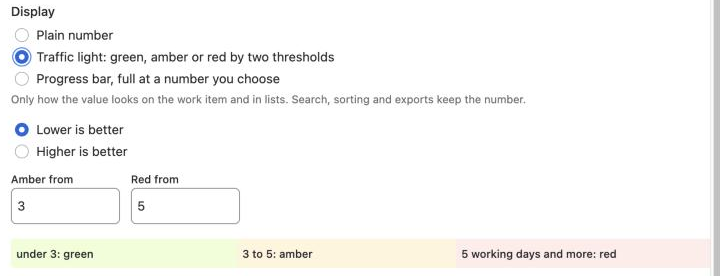
Under Display, select Traffic light: green, amber or red by two thresholds. FieldCraft fills in 3 for amber and 5 for red.
-
Select Lower is better if you want small values green, or Higher is better if you want large values green.
-
Enter the two thresholds. If the field offers several units, such as working days and working hours, select one in In.
-
Check the preview strip below the thresholds, and select Save.
Result: You see the value in a green, amber or red lozenge on the work item.
Lower or higher is better
| Option | Thresholds | Preview strip |
|---|---|---|
| Lower is better | Amber from and Red from. Red starts at or above amber | under 3: green, 3 to 5: amber, 5 transitions and more: red, for a Transition Count |
| Higher is better | Amber below and Red below. Red starts below amber | below 50: red, 50 to 80: amber, 80 % and more: green, for a % done Rollup |
Use Lower is better for durations and counts of rework. Use Higher is better for progress, such as a % done Rollup.
When you switch the option, FieldCraft swaps your two numbers.
You can enter decimals with a point or a comma.
Show a progress bar
-
Open the field's configuration page.
-
Under Display, select Progress bar, full at a number you choose.
-
In Full at, enter the value that fills the bar. The default is 100.
-
Select Save.
Result: You see a progress bar next to the value on the work item.
The bar turns green once full. Values above Full at show a full bar.
How it looks
On the work item, you see the lozenge or the bar next to the value.
In lists, you see a colored circle or a ten-step text bar such as ▰▰▰▱▱▱▱▱▱▱ before the value.
If a field is empty, you see no color or bar.
If you can't save
| Message | What to do |
|---|---|
| Set both thresholds. | Enter a number in both threshold boxes |
| Red must start at or above amber. | With Lower is better, make the red number the larger one |
| Red must start below amber: red below a smaller number than amber. | With Higher is better, make the red number the smaller one |
| Set the number at which the bar is full. | Enter a number above 0 in Full at |
Related
-
Configure a field: open the page and save settings per context.
-
Search and report with FieldCraft fields: JQL and exports use the number, not the color.
-
Rollup: add up children, with % done as a progress bar.
-
Time Between: color cycle time by working days.