The app's admin page
Open the app's admin page to check what it stores, who can see and edit diagrams, and where its data goes. There are no settings to change on it.
Before you begin
- You need to be a site admin, or a Confluence admin or Jira admin.
Open the admin page
-
Go to admin.atlassian.com and select your organization.
-
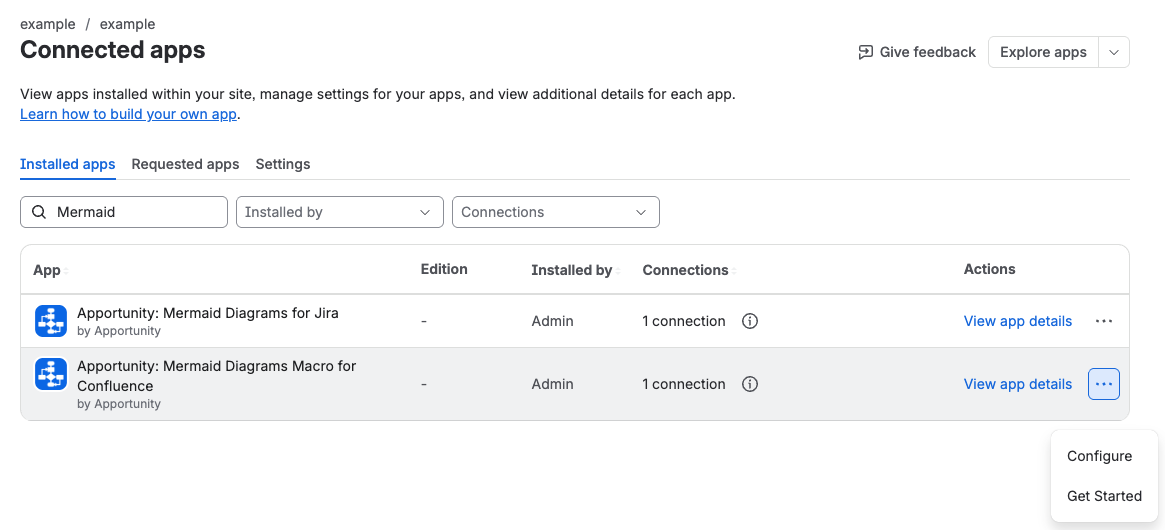
Select Apps > Sites > your site > Connected apps.
-
Search for Mermaid.
-
Open the app's ••• menu and select Configure or Get Started. Both open the same page.
What the page shows
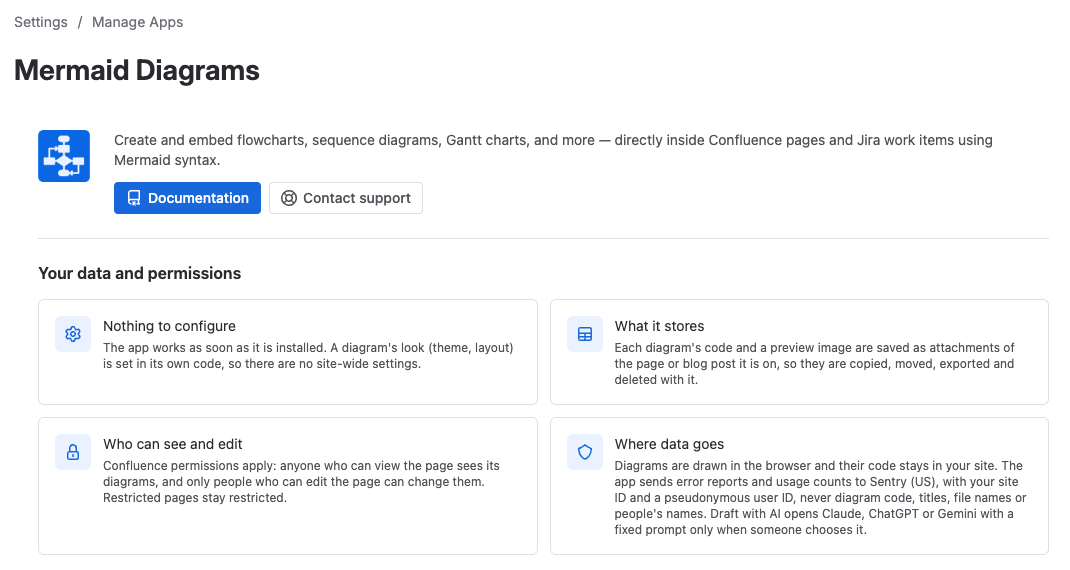
| Section | What it tells you |
|---|---|
| Nothing to configure | The app works once installed, and each diagram's look is set in its code |
| What it stores | Diagrams are page attachments in Confluence, and live in the app's storage in Jira |
| Who can see and edit | Confluence and Jira permissions apply |
| Where data goes | Diagrams are drawn in the browser. Only error reports and usage counts leave the site |
| What you can create | Examples of the main diagram types |
| Getting started | The steps to add a first diagram in your product |
The first four sit under Your data and permissions. The Documentation and Contact support buttons at the top link to these docs and to our support portal.
Related
- Data security and privacy: the full detail behind Your data and permissions.
- Permissions: every permission, action by action.
- Install, update and uninstall the app: approve major updates in the same Connected apps list.