Measure cycle time in working hours
Show on every work item how much working time it took from starting work to finishing it, and find the slow ones on a dashboard.
Problem: Jira shows when work was created and resolved, but not how long the team worked on it. Nights, weekends and holidays make every duration look longer.
Solution: You set up a work calendar with your team's hours. Then you create a Cycle time field from a recipe, fill in older work items, and color the value with a traffic light.
What you'll need
-
FieldCraft, installed, with an active license.
-
The Administer Jira global permission, to create the calendar and the field.
-
Workflows with statuses in the In Progress and Done categories. The recipe uses the status categories, so it works on every workflow.
-
Your team's working hours, time zone and public holidays.
What your team will experience
-
A developer moves a story to Done. Cycle time shows the working time it took, such as
2d 4h, in green, amber or red. -
A scrum master opens the team dashboard and sees the slowest finished work at the top.
-
An engineering manager searches for
"Cycle time" > 5to review work that took more than five working days.
Set it up
1. Create a work calendar
-
Go to Settings (⚙) > Marketplace apps > FieldCraft: Custom Fields. The FieldCraft admin page opens.
-
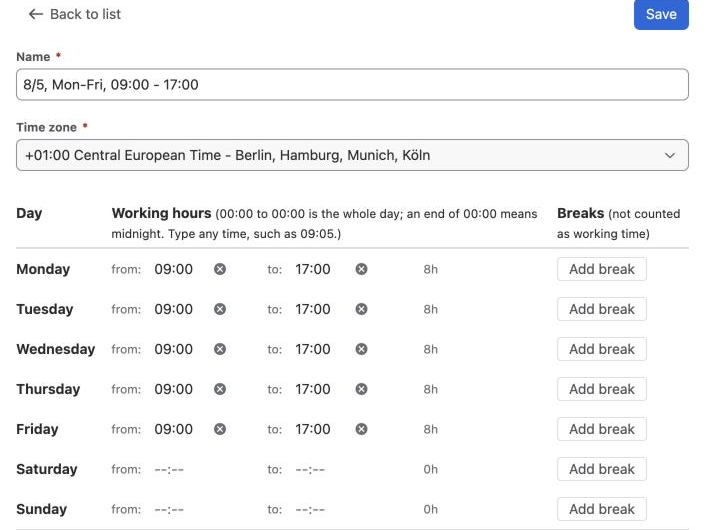
On the Settings tab, select Work calendars, then Create work calendar. The calendar form opens.
-
Enter a Name, and select the Time zone your team works in.
-
Set the from: and to: times for each working day. Clear both times on days off.
-
Under Holidays, add your public holidays, and select Save.
2. Create the field
-
On the Fields tab, select New field from recipe. The recipe gallery opens.
-
Select Cycle time. The recipe form opens.
-
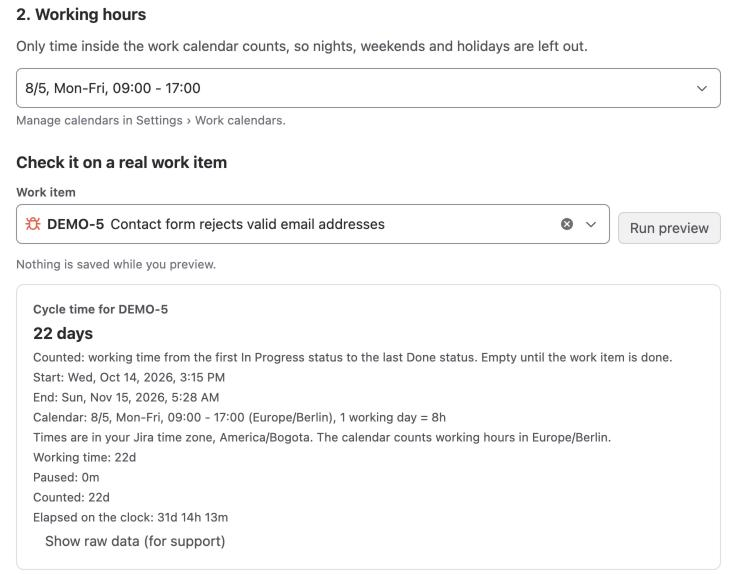
Under Working hours, select your calendar.
-
Under Check it on a real work item, enter the key of a finished work item, and select Run preview. The preview shows the value and saves nothing.
-
Optional: under Show it on screens, select the screens your teams use.
-
Select Create field. A page opens that says Cycle time is ready.
3. Fill in older work items
- Under Fill in existing work items, select Fill last 90 days.
FieldCraft fills in work items created in the last 90 days or still open. It runs in the background, so you can close the page.
4. Add a traffic light
-
On the Fields tab, open the ••• menu of Cycle time, and select Edit configuration. The field's configuration page opens.
-
Under Display, select Traffic light: green, amber or red by two thresholds.
-
Keep Lower is better,
3in Amber from and5in Red from, and select Save.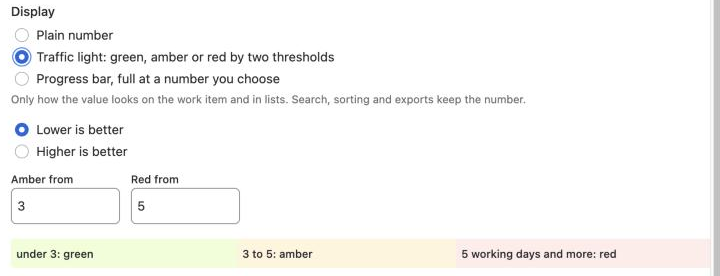
Result: Values under 3 working days show green, 3 to 5 amber, and 5 or more red.
5. Build a filter and a dashboard
-
In Jira's search, run this JQL:
"Cycle time" IS NOT EMPTY AND resolved >= -30d ORDER BY "Cycle time" DESC -
Save the filter, for example as
Cycle time, last 30 days. -
On your team's dashboard, add a Filter results gadget for the filter, and show the Cycle time column.
The gadget lists the slowest work first, with the traffic light before each value.
Check that it works
-
Move a test work item to an In Progress status, and later to a Done status.
-
Open the work item. Confirm that Cycle time shows the working time in between.
-
Hover over the value. Confirm that it names your calendar.
-
Reopen the work item. Confirm that the field is empty until it's done again.
Related use cases
-
Find work that keeps coming back: count reopens next to cycle time.
-
Time Between: every start, end and pause setting of the field.
-
Create a work calendar: breaks, holidays and night shifts.
-
Recalculate existing work items: fill in work items older than 90 days.