Follow runs on the Activity tab
Use the Activity tab to see every hourly refresh and reindex on your site, newest first, and to find out why values failed.
Before you begin
-
Jira permission: Jira admin (Administer Jira global permission).
-
FieldCraft: installed, with an active license.
Open the run list
-
Go to Settings (⚙) > Marketplace apps > FieldCraft: Custom Fields.
-
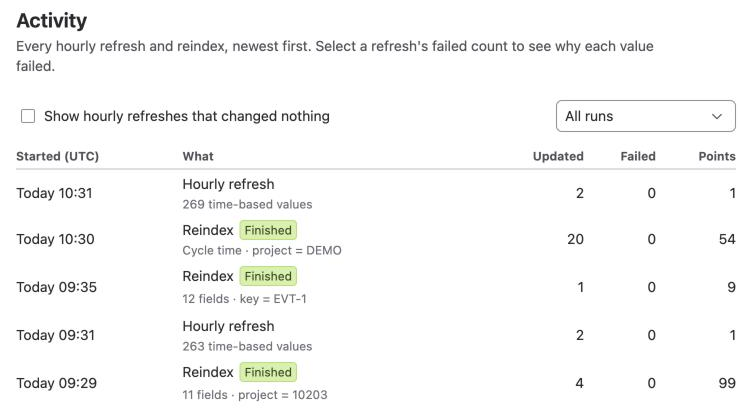
Select the Activity tab. The list of runs opens, 10 rows a page.
-
In Show, select All runs, Reindexes or Hourly refreshes.
-
To list refreshes that changed no value, select Show hourly refreshes that changed nothing.
Result: You see each run with its time, what it did, and how many values it updated.
What the columns show
| Column | What it shows |
|---|---|
| Started (UTC) | When the run started, in UTC, for example Today 20:31 or 9 Nov 14:02 |
| What | Hourly refresh with the number of time-based values, or Reindex with its fields and JQL |
| Updated | Values written. While a run is in progress, it reads N so far |
| Failed | Values that FieldCraft couldn't store |
| Points | Jira API points the run used. See Hourly calculation budget |
Identical hourly refreshes in a row collapse into one row with a ×N lozenge and Same result each time.
Run statuses
The What column shows you a status next to most runs. A finished hourly refresh shows none.
| Status | Meaning |
|---|---|
| Running | The run is in progress |
| Finished | The reindex ended without failures |
| Finished with errors | The reindex ended, and some work items failed |
| Stopped early | You stopped the reindex, or the hourly refresh reached the hourly budget or Jira's rate limit. Values written so far stay, and a refresh catches up at its next run |
| Failed | The reindex ended with an error |
| Didn't finish | The run stalled and didn't end |
You retry a reindex's failed work items on the Calculation tab. See Recalculate existing work items.
See why values failed
-
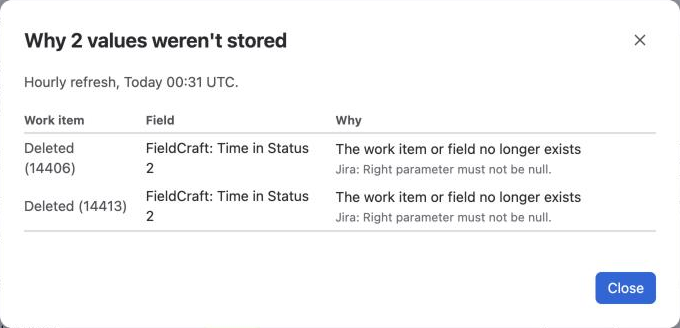
In a refresh row, select the number in Failed. A dialog opens, titled Why N values weren't stored.
-
Read the Work item, Field and Why of each failure. Below each reason, you see Jira's own message.
-
Select Close.
FieldCraft keeps up to 50 failures for each refresh, for 7 days, so you see recent ones only.
| Reason | What to check |
|---|---|
| The work item or field no longer exists | Someone deleted the work item or moved the field to the trash. Nothing to do |
| Jira refused the value | Jira's message under the reason says what was wrong with the value |
| FieldCraft may not edit this work item | Jira didn't let the app write the field on this work item. Read Jira's message |
| Jira returned an error | Read Jira's message. To try again, select Run hourly refresh now on the Calculation tab |
Related
-
How values stay current: what each kind of run does.
-
Some values failed to calculate: fix the causes behind failed values.
-
Recalculate existing work items: start, stop and retry a reindex.