Event Planner for Jira
Event Planner for Jira provides two independent ways to manage event calendars in Jira Cloud:
- Issue Panel - An event calendar embedded directly inside a Jira work item. Events are scoped to that specific work item.
- Dashboard Gadget - A standalone event calendar on a Jira Dashboard, completely independent from any individual work item.
The Issue Panel and Dashboard Gadget maintain separate, independent event stores. Events created in an Issue Panel are not visible in a Dashboard Gadget, and vice versa.
Permissions
| Action | Required permission |
|---|---|
| Install the app | Jira Administrator |
| Create, edit, or delete events on an Issue Panel | Work item edit permission |
| View events on an Issue Panel | Any user with work item view permission |
| Create, edit, or delete events on a Dashboard Gadget | Dashboard owner or editor permission |
| View events on a Dashboard Gadget | Any user with access to the dashboard |
All users with work item edit permission can create, edit, and delete any event on that work item's calendar - regardless of who created it. There is no per-event ownership or authorship lock.
Issue Panel - Quick start
The Issue Panel appears directly within a Jira work item and stores events scoped to that specific work item.
- Open a Jira work item.
- Find the Event Planner panel in the work item view (location depends on your space's panel layout).
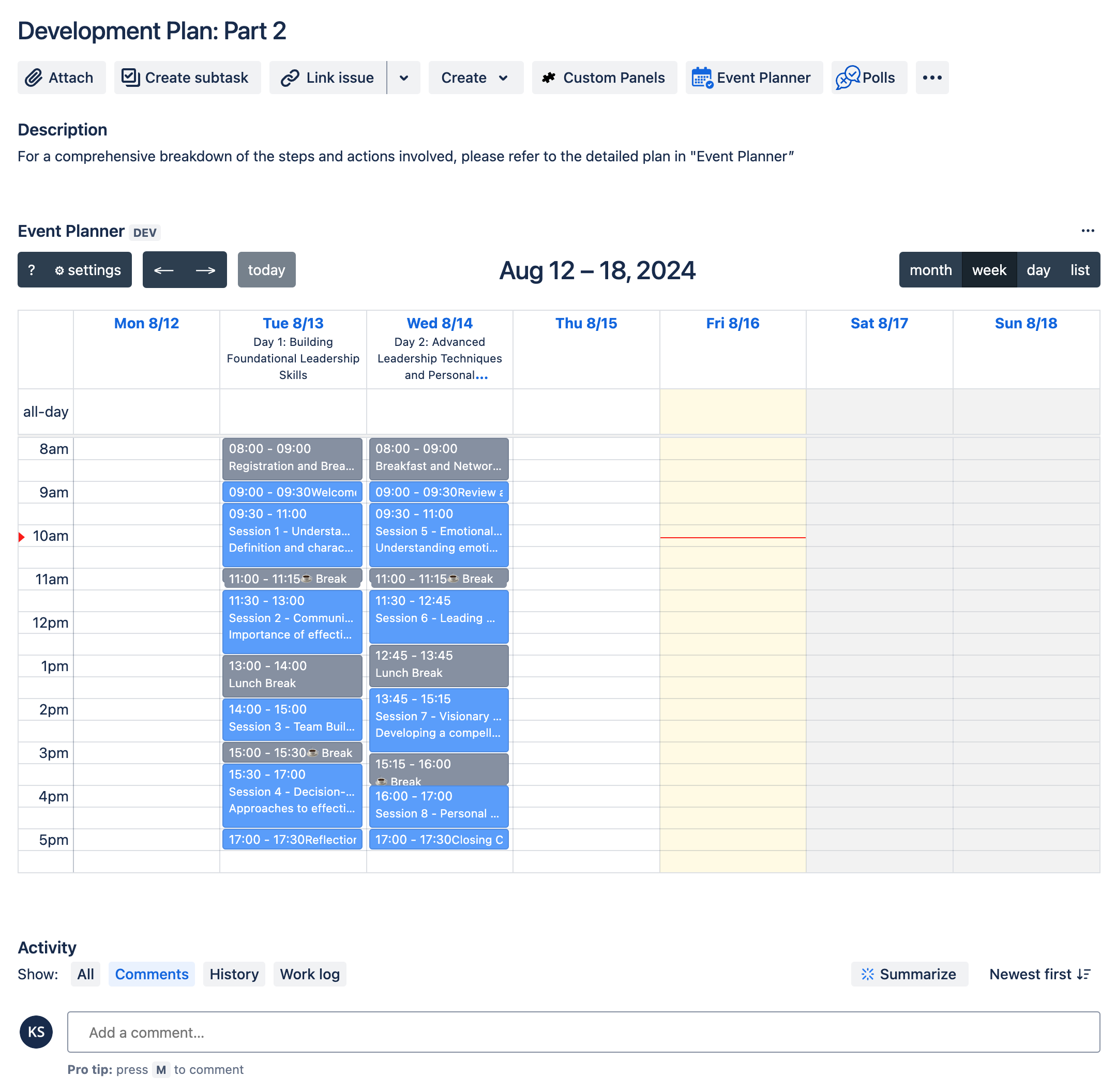
- Select + Add event or select any date in the calendar.
- Fill in the event details:
- Title (required)
- Description (optional - supports plain text and links)
- Start date and End date
- Color for visual categorization
- Select Save. The event appears on the calendar immediately.
If the Event Planner panel is not visible on a work item, verify the app is installed and enabled. See Troubleshooting.
Dashboard Gadget - Quick start
The Dashboard Gadget is a standalone event calendar that lives on a Jira Dashboard. Its events are fully independent from any issue panel.
- Open or create a Jira Dashboard.
- Select Edit dashboard > Add gadget.
- Search for Event Planner and add the gadget to your dashboard.
- Use the same event creation flow as the Issue Panel (steps 3–5 above).
Events created on a Dashboard Gadget are not associated with any Jira work item. Deleting a work item does not affect gadget events.
Key features
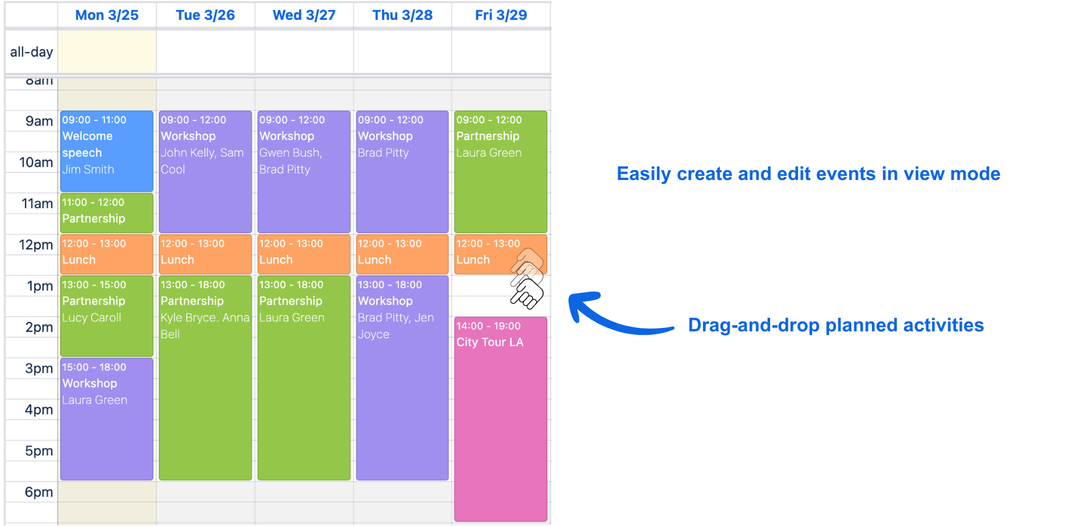
Drag-and-drop events
Move existing events by dragging and dropping them to a new date. Resize multi-day events by dragging their edges to change duration.
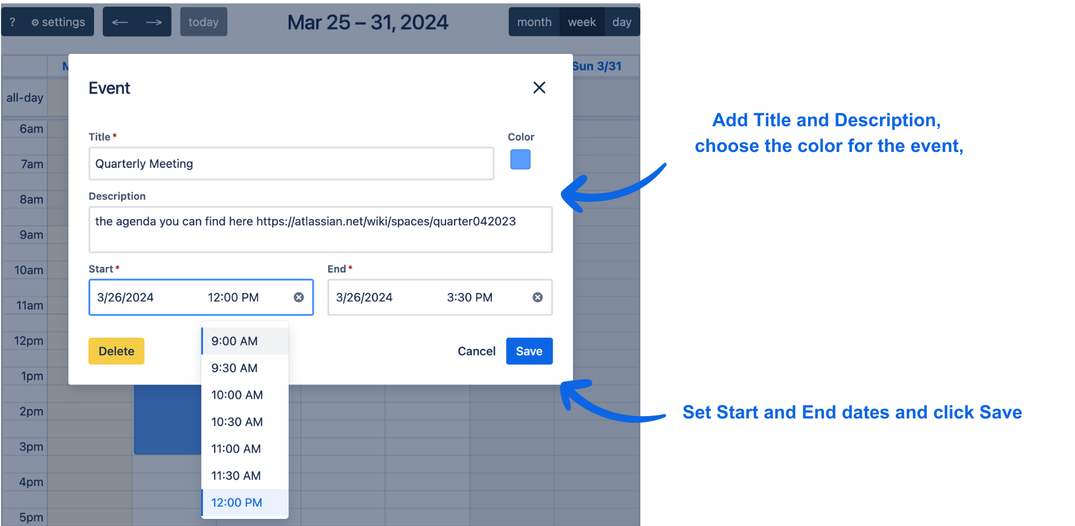
Event creation dialog
Select any date or the + Add event button to open the event editor. Available fields:
| Field | Required | Notes |
|---|---|---|
| Title | Yes | Displayed on the calendar tile |
| Description | No | Supports plain text; use this field for links |
| Start date | Yes | - |
| End date | Yes | Can equal start date for a single-day event |
| Color | No | Used for visual categorization |
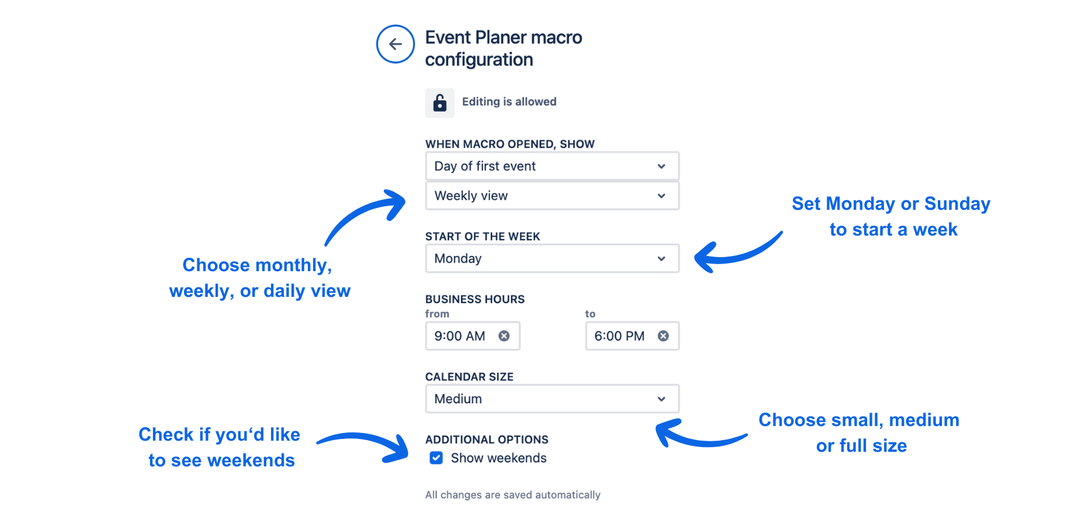
Configurable calendar view
| Option | Description |
|---|---|
| Calendar size | Controls the display size of the panel or gadget |
| Default view | Choose between monthly, weekly, or daily view |
| Start of week | Set Monday or Sunday as the first day of the week |
| Weekend visibility | Show or hide Saturday and Sunday |
Color-coded events
Assign a color to each event during creation or editing. Colors are visible on calendar tiles and help teams distinguish event types at a glance.
Dark theme
The app automatically adapts to Jira's dark theme when enabled.
Exporting events
You can export calendar events to share with external calendar applications.
Supported formats:
- ICS - compatible with Apple Calendar, Google Calendar, and Microsoft Outlook
- CSV - compatible with spreadsheet tools
To export from an Issue Panel:
- Open the Jira work item containing the Event Planner panel.
- Open the panel Settings (gear icon or settings menu within the panel).
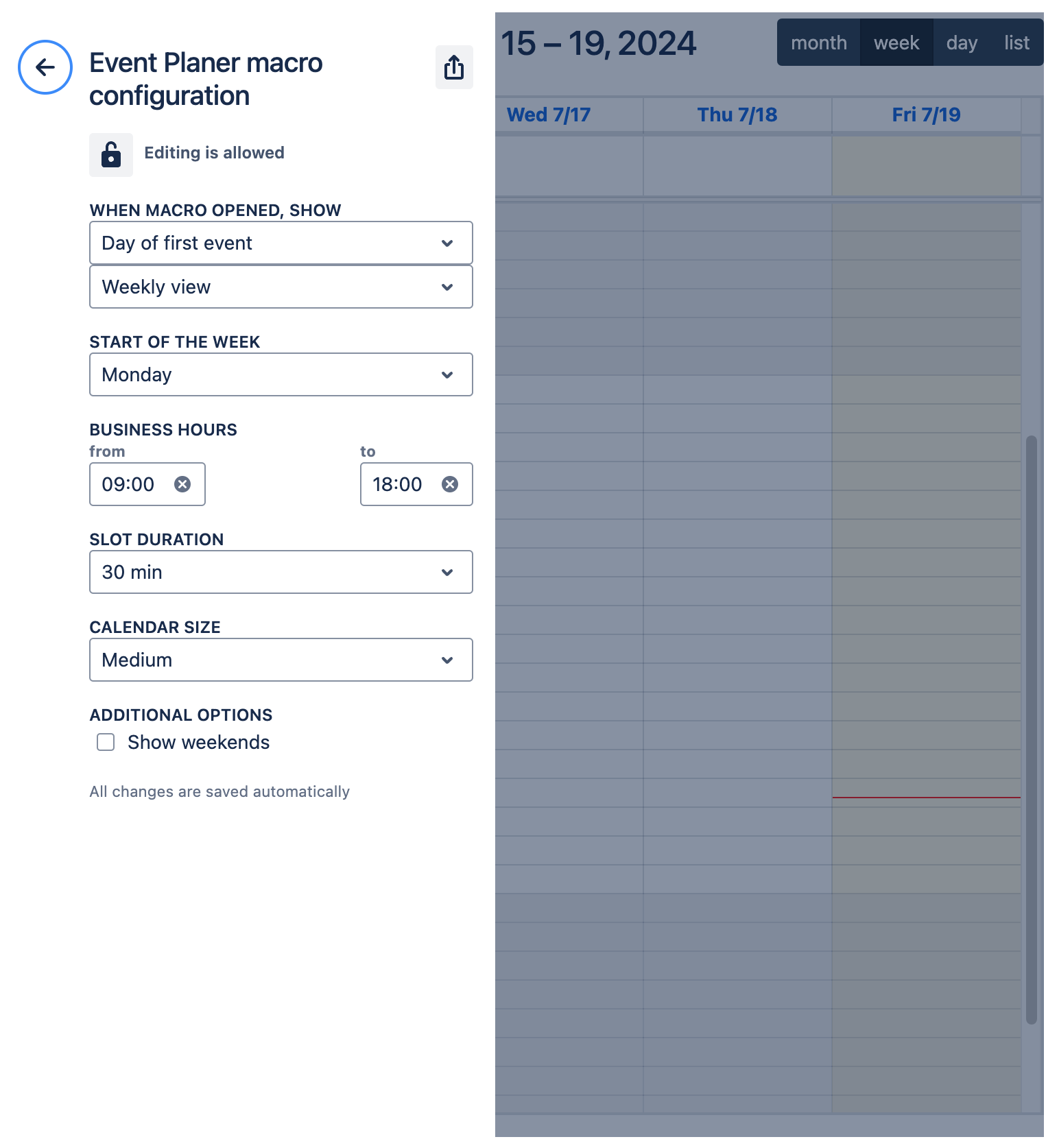
- Select the Export icon.
- Select the export format: ICS or CSV.
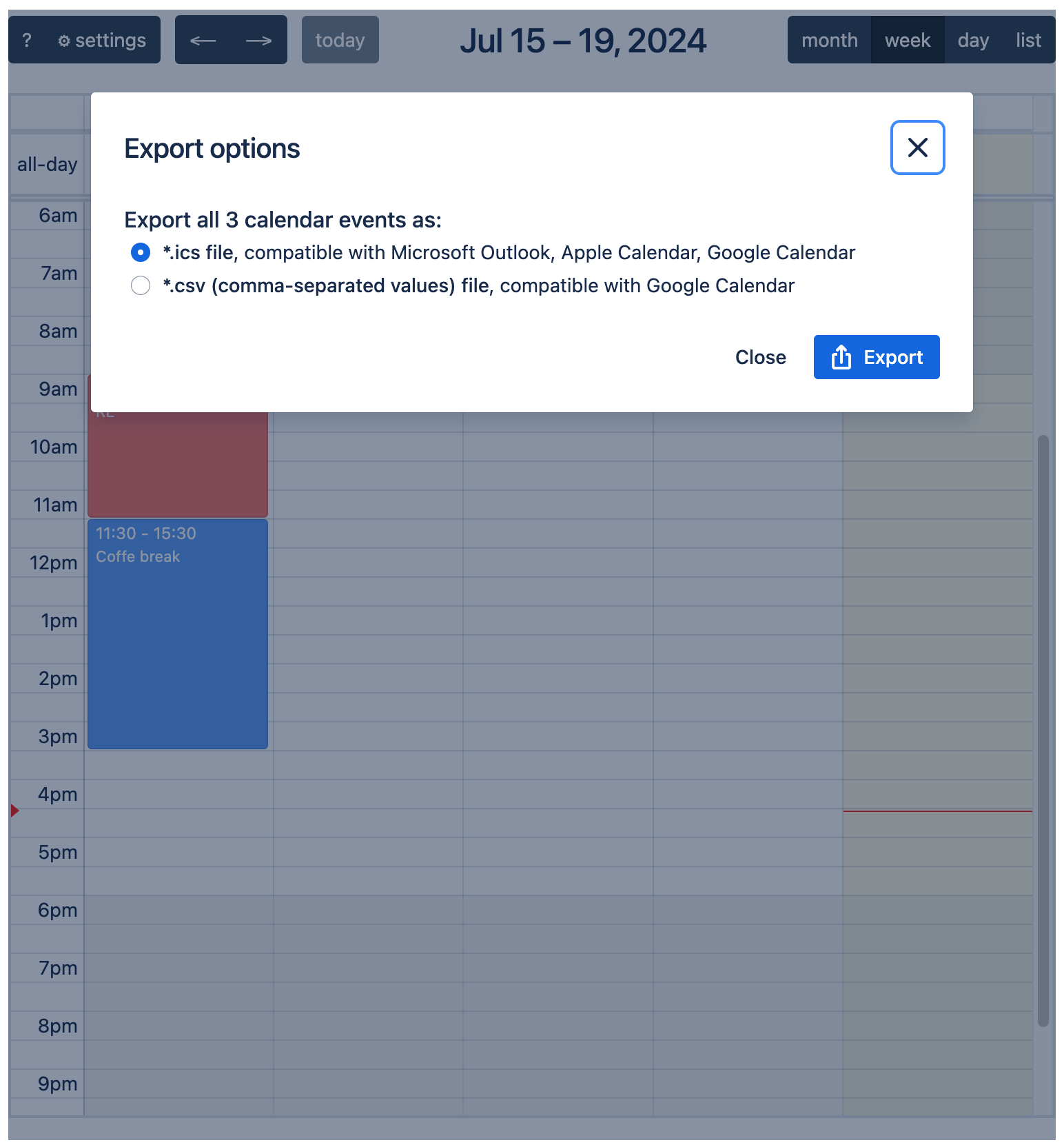
- The file downloads to your device.
The same steps apply to exporting from a Dashboard Gadget - open the gadget's Settings and select the Export icon.
Limitations
| Limitation | Details |
|---|---|
| Events scoped per work item | Issue Panel events belong to a single Jira work item and are not shared with or visible from other work items. |
| Issue Panel and Gadget are independent | Events in a Dashboard Gadget are separate from issue panels. There is no cross-panel event aggregation. |
| Cloud only | Requires Jira Cloud. Not compatible with Jira Data Center or Server. |
| Recurring events | Not currently supported. Planned for a future release. |
| Event fields | Events support Title, Description, Start date, End date, and Color only. Custom fields are not available. |
Data & privacy
- Built with Atlassian Forge. All event data is stored within your Atlassian Cloud site. No data is transmitted to or stored on Apportunity UG (haftungsbeschränkt) servers.
- Issue Panel events are stored within the scope of their Jira work item. Deleting the work item permanently removes all associated events.
- The app operates entirely within Atlassian's Forge sandbox and complies with Atlassian's cloud security requirements.
- For the full privacy policy, see apportunity.xyz/privacy-policy.
Need help? Visit the support portal or see Troubleshooting & FAQ.