Event Planner for Confluence
Event Planner for Confluence is a Confluence Cloud macro that lets you create and manage an event calendar on any Confluence page. Events are created and edited directly in page view mode - no re-editing the page is required.
Permissions
| Action | Required permission |
|---|---|
| Install the app | Confluence Administrator |
| Add the macro to a page | Page edit permission |
| Create, edit, or delete events | Page edit permission |
| View the calendar and events | Any user with page view permission |
All users with page edit permission can create, edit, and delete any event on that calendar - regardless of who created it. There is no per-event ownership or authorship lock.
Quick start
- Open a Confluence page in Edit mode.
- Type
/eventand select Event Planner from the autocomplete suggestions.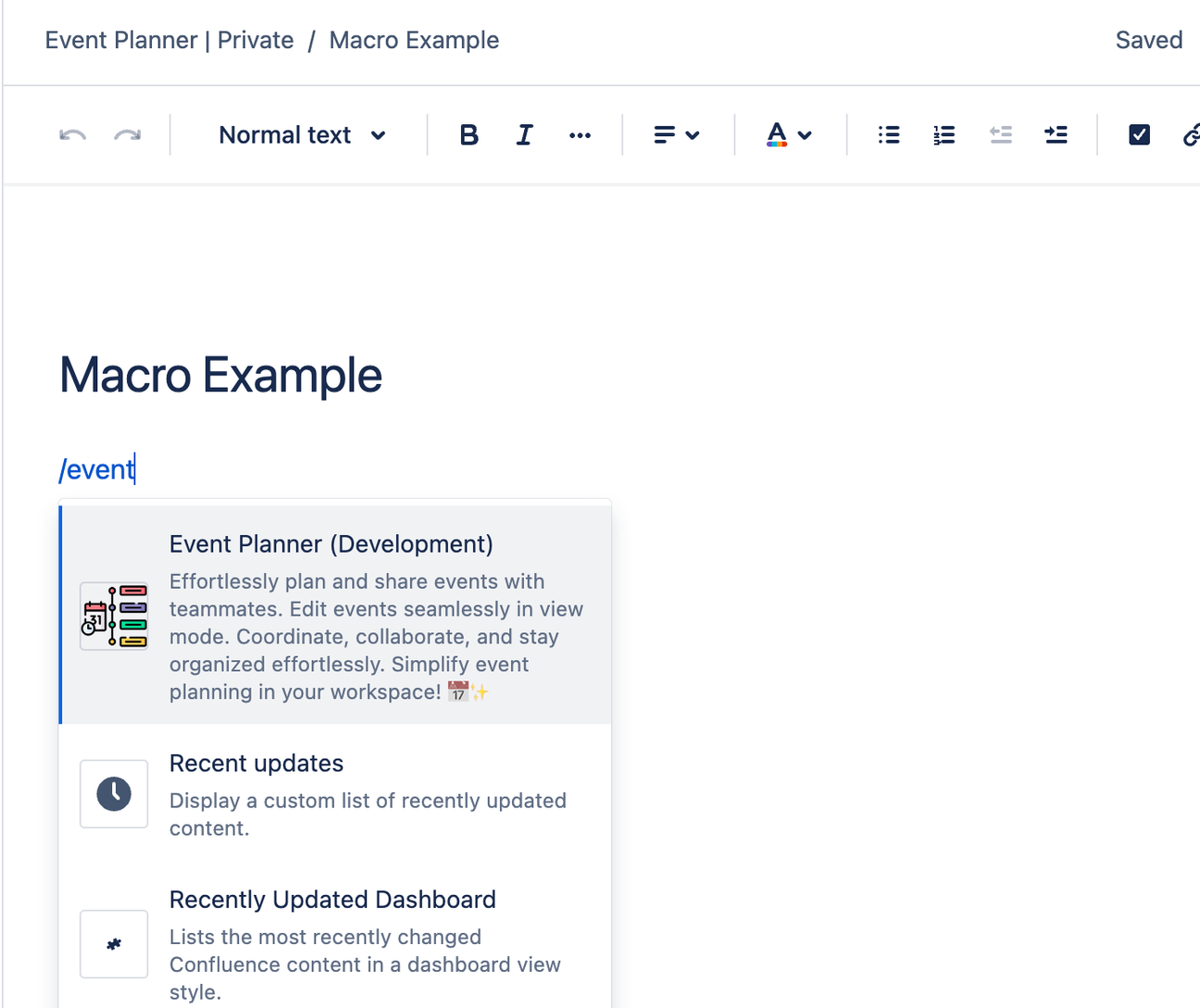 Alternatively, open the full macro list and search for Event Planner.
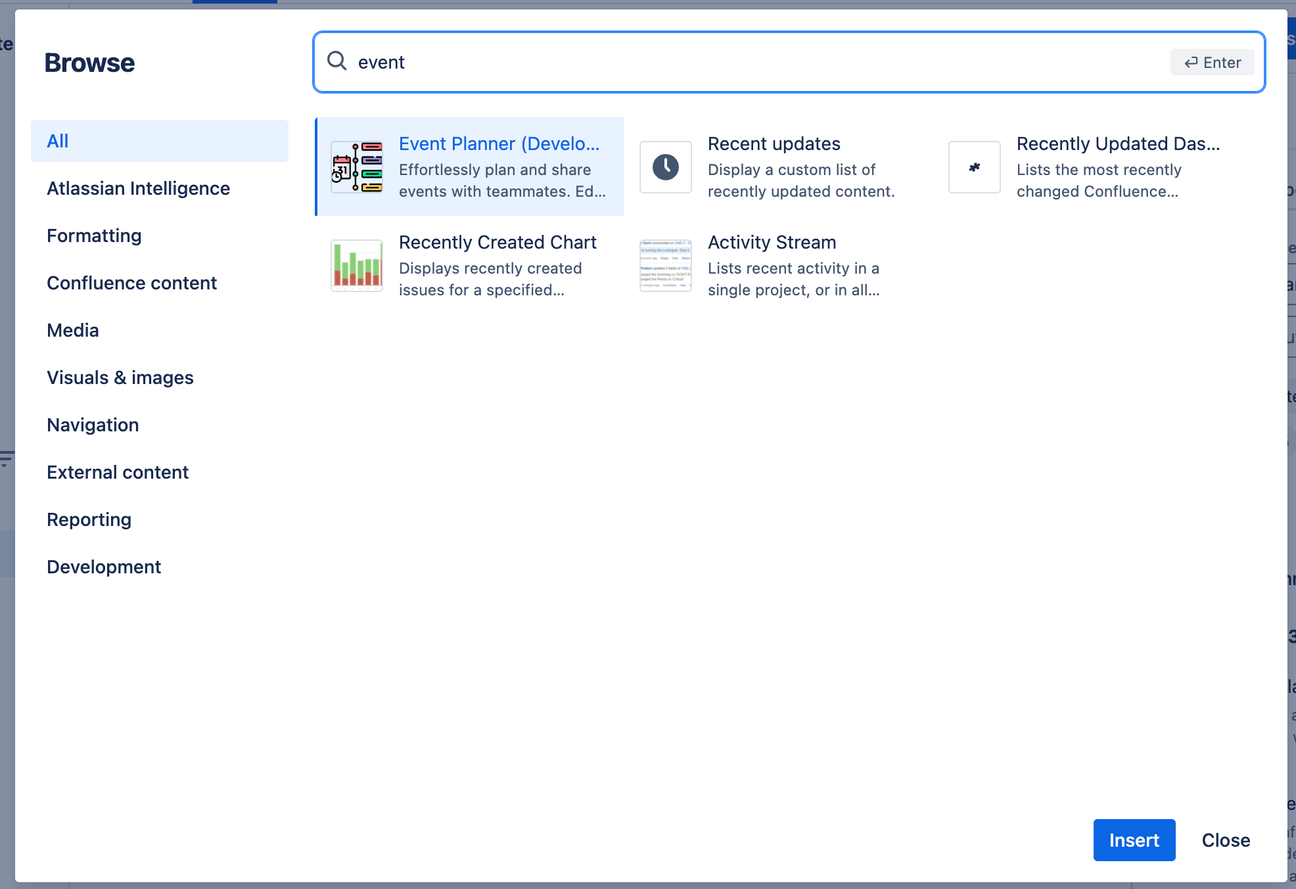
- Publish or Preview the page. The macro renders as an empty calendar in view mode.
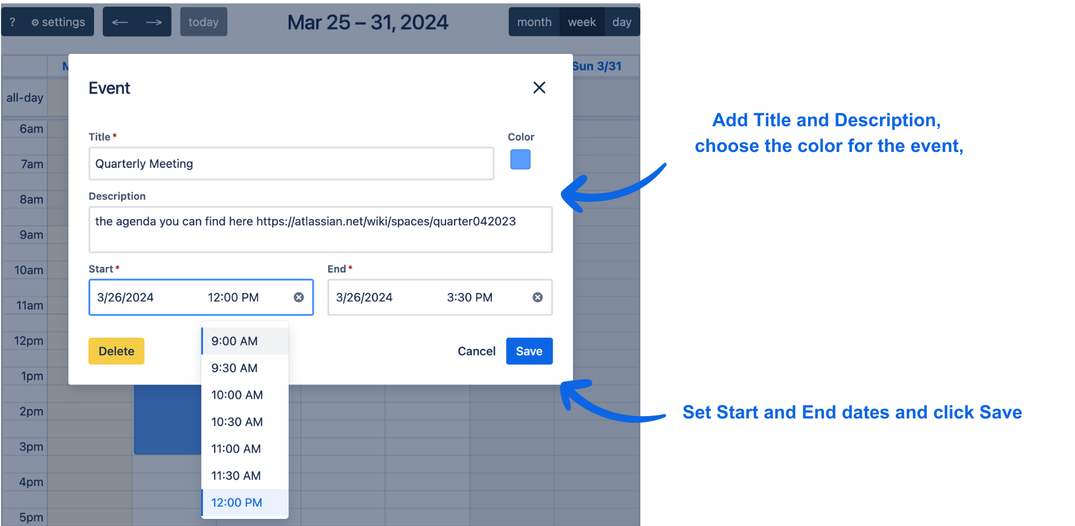
- Select + Add event or select any date in the calendar.
- Fill in the event details:
- Title (required)
- Description (optional - supports plain text and links)
- Start date and End date
- Color for visual categorization
- Select Save. The event appears on the calendar immediately without re-publishing the page.
Key features
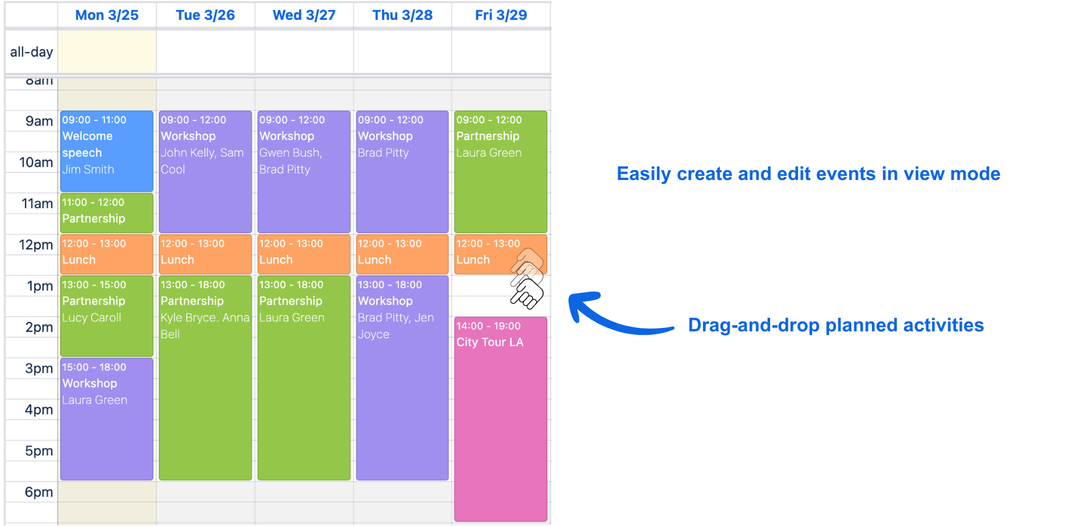
Drag-and-drop events
Move existing events by dragging and dropping them to a new date directly in view mode. Resize multi-day events by dragging their edges to change duration.
Event creation dialog
Select any date or the + Add event button to open the event editor. Available fields:
| Field | Required | Notes |
|---|---|---|
| Title | Yes | Displayed on the calendar tile |
| Description | No | Supports plain text; use this field for links |
| Start date | Yes | - |
| End date | Yes | Can equal start date for a single-day event |
| Color | No | Used for visual categorization |
Configurable calendar view
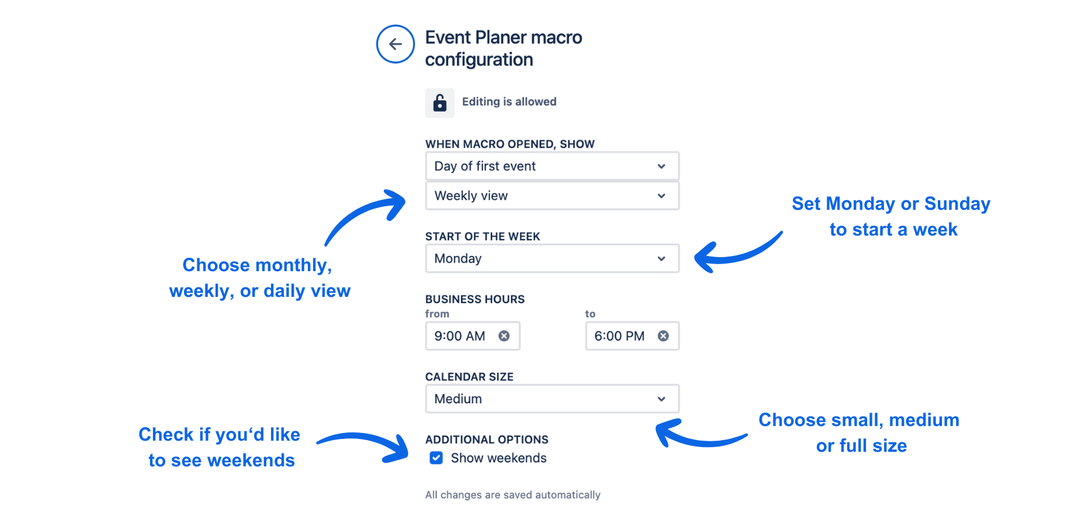
Configure the macro display to match your team's preferences:
| Option | Description |
|---|---|
| Calendar size | Controls the display size of the macro on the page |
| Default view | Choose between monthly, weekly, or daily view |
| Start of week | Set Monday or Sunday as the first day of the week |
| Weekend visibility | Show or hide Saturday and Sunday |
Color-coded events
Assign a color to each event during creation or editing. Colors are visible on calendar tiles and help teams distinguish event types at a glance.
PDF and Word export
The Event Planner macro is fully included when you export a Confluence page using Confluence's native Export to PDF or Export to Word feature. The calendar and all its events render as part of the page content in the exported document, making it easy to share schedules in a portable document format alongside other page content.
Events survive page copy and move
Event data is stored as part of the Confluence page content. When you copy or move a page that contains an Event Planner macro, all planned events are carried along automatically - no manual re-entry or reconfiguration required.
Exporting events
You can export all calendar events to share with external calendar applications.
Supported formats:
- ICS - compatible with Apple Calendar, Google Calendar, and Microsoft Outlook
- CSV - compatible with spreadsheet tools
To export:
- Open the Confluence page containing the Event Planner macro.
- Open the macro Settings (gear icon or settings menu within the macro).
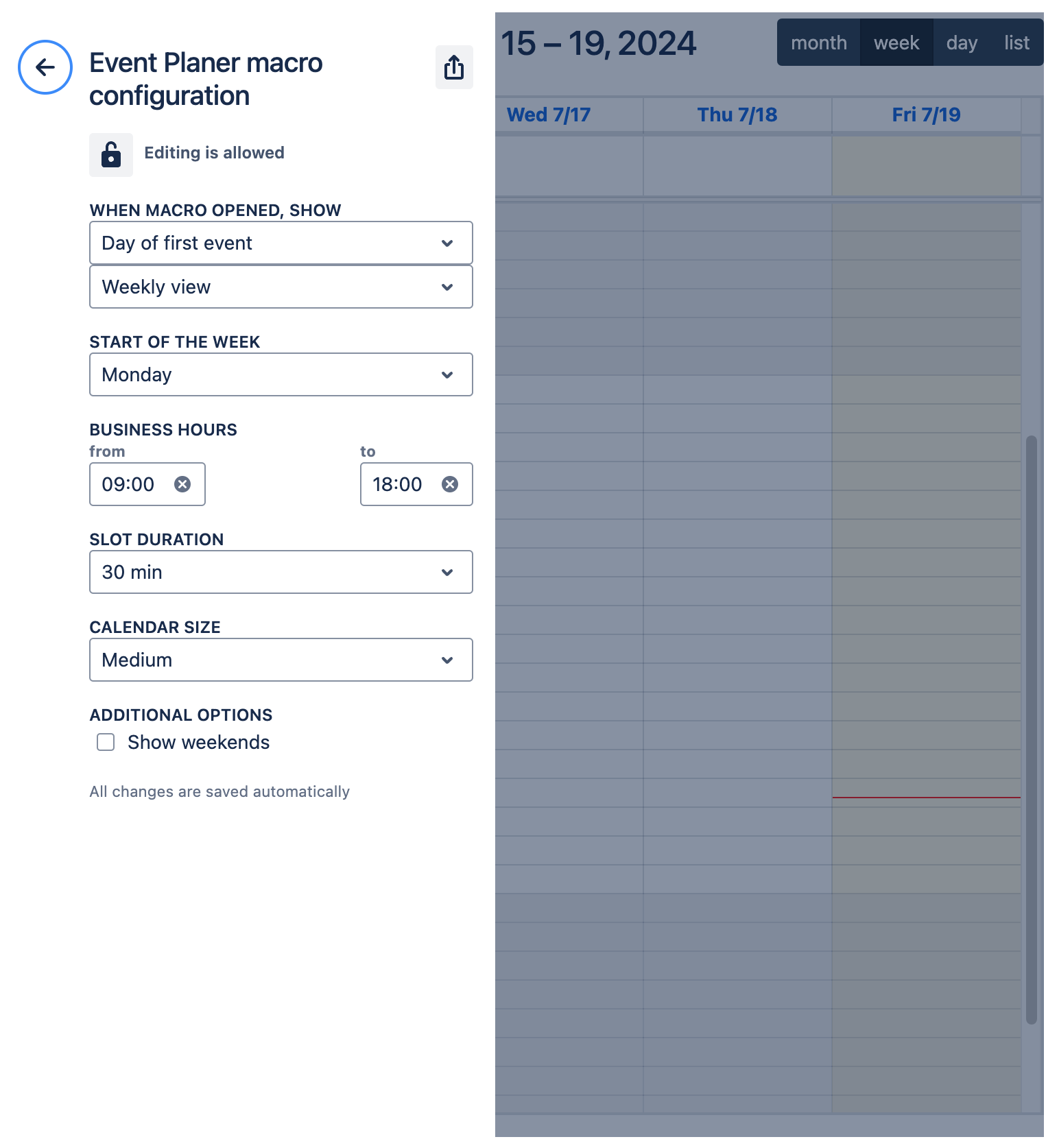
- Select the Export icon.
- Select the export format: ICS or CSV.
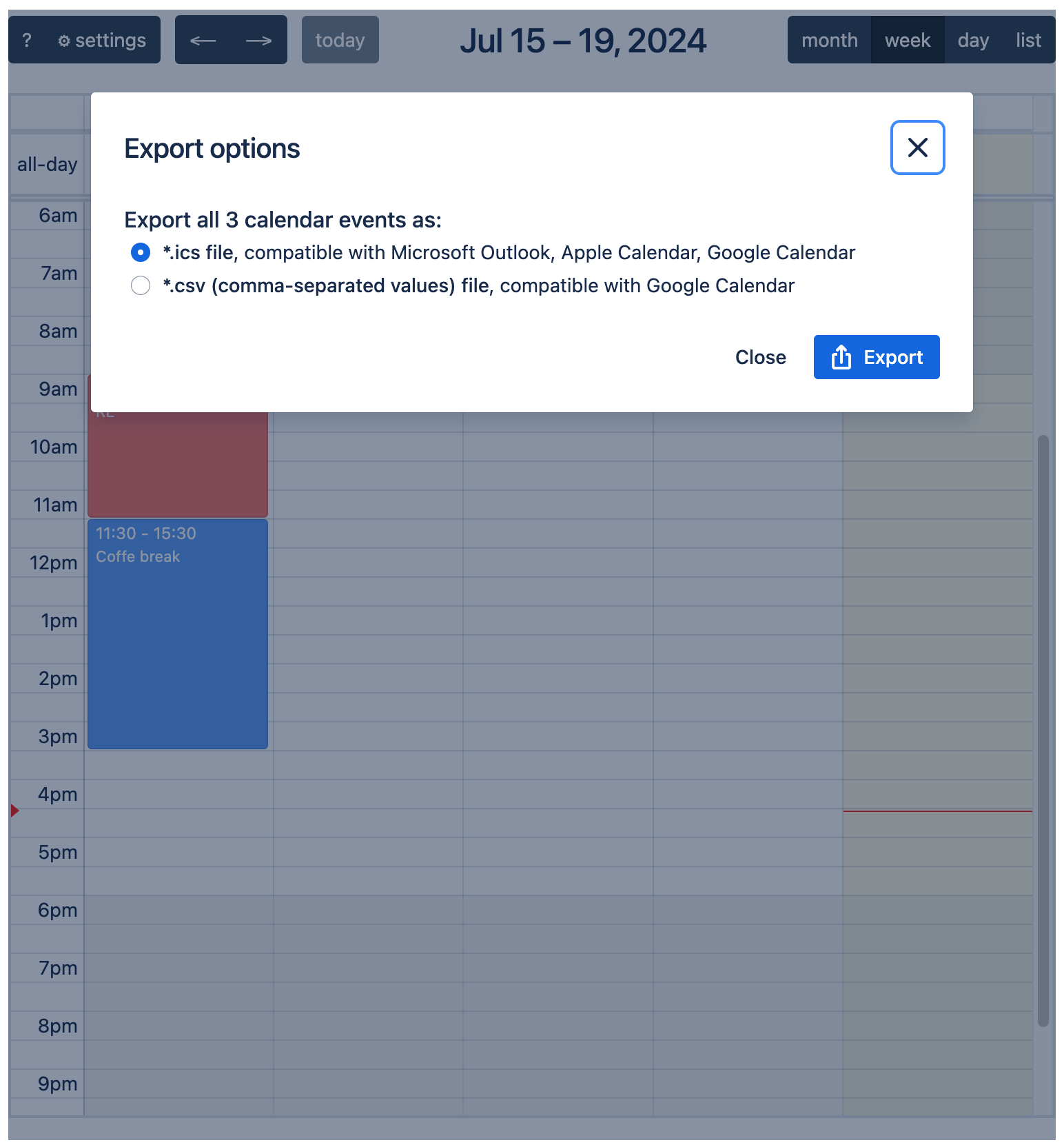
- The file downloads to your device. Open it in your calendar application to import the events.
Limitations
| Limitation | Details |
|---|---|
| No shared calendars across pages | Each macro instance stores its own independent calendar. It is not possible to display the same calendar on multiple Confluence pages. |
| Cloud only | Requires Confluence Cloud. Not compatible with Confluence Data Center or Server. |
| Recurring events | Not currently supported. Planned for a future release. |
| Event fields | Events support Title, Description, Start date, End date, and Color only. Custom fields are not available. |
If you need events visible in multiple places, create a dedicated team calendar page and link to it from other pages instead of duplicating events.
Data & privacy
- Built with Atlassian Forge. All event data is stored within your Atlassian Cloud site. No data is transmitted to or stored on Apportunity UG (haftungsbeschränkt) servers.
- The app operates entirely within Atlassian's Forge sandbox and complies with Atlassian's cloud security requirements.
- For the full privacy policy, see apportunity.xyz/privacy-policy.
Need help? Visit the support portal or see Troubleshooting & FAQ.