Sharing a Board
This guide explains how to share a Jira Kanban board with external collaborators using a unique public link. Recipients can browse the board and open individual Work Items — no Jira account needed.
Step 1: Open the Board
Navigate to the Jira board you want to share.
Step 2: Open the Board Menu
Click the three-dot menu (⋯) at the top-right of the board. From the dropdown, select "Share External Link".
If the "Share External Link" option is not visible, your Jira administrator has restricted board sharing for your account. See the FAQ below for details.
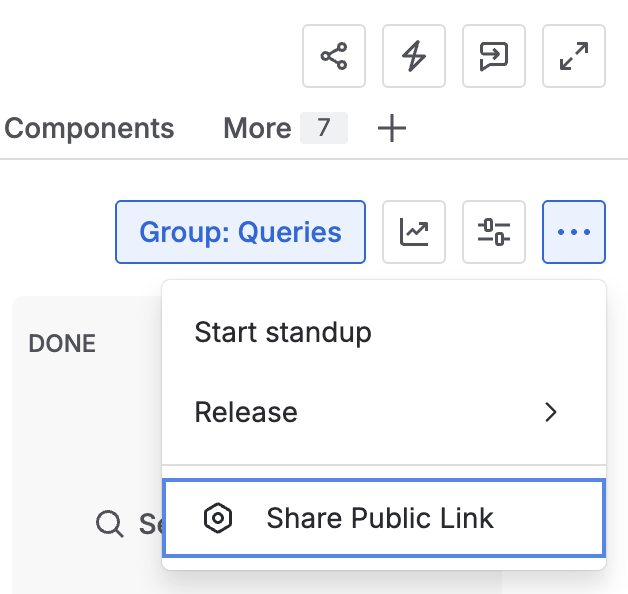
Screenshot: The board three-dot menu with "Share External Link" highlighted
Step 3: Configure What to Share
A modal window appears. The board itself — columns and the Work Items placed in each column — is always visible to the recipient.
The following additional content sections are disabled by default. Enable the ones you want to expose:
| Option | What it includes |
|---|---|
| Attachments | Files and images attached to each Work Item |
| Comments | All comments on each Work Item |
| Linked Issues | Issues linked via "relates to", "blocks", etc. |
| Sub-Work Items | Child issues / subtasks of each Work Item |
Toggle only the sections that are relevant and safe to share externally.
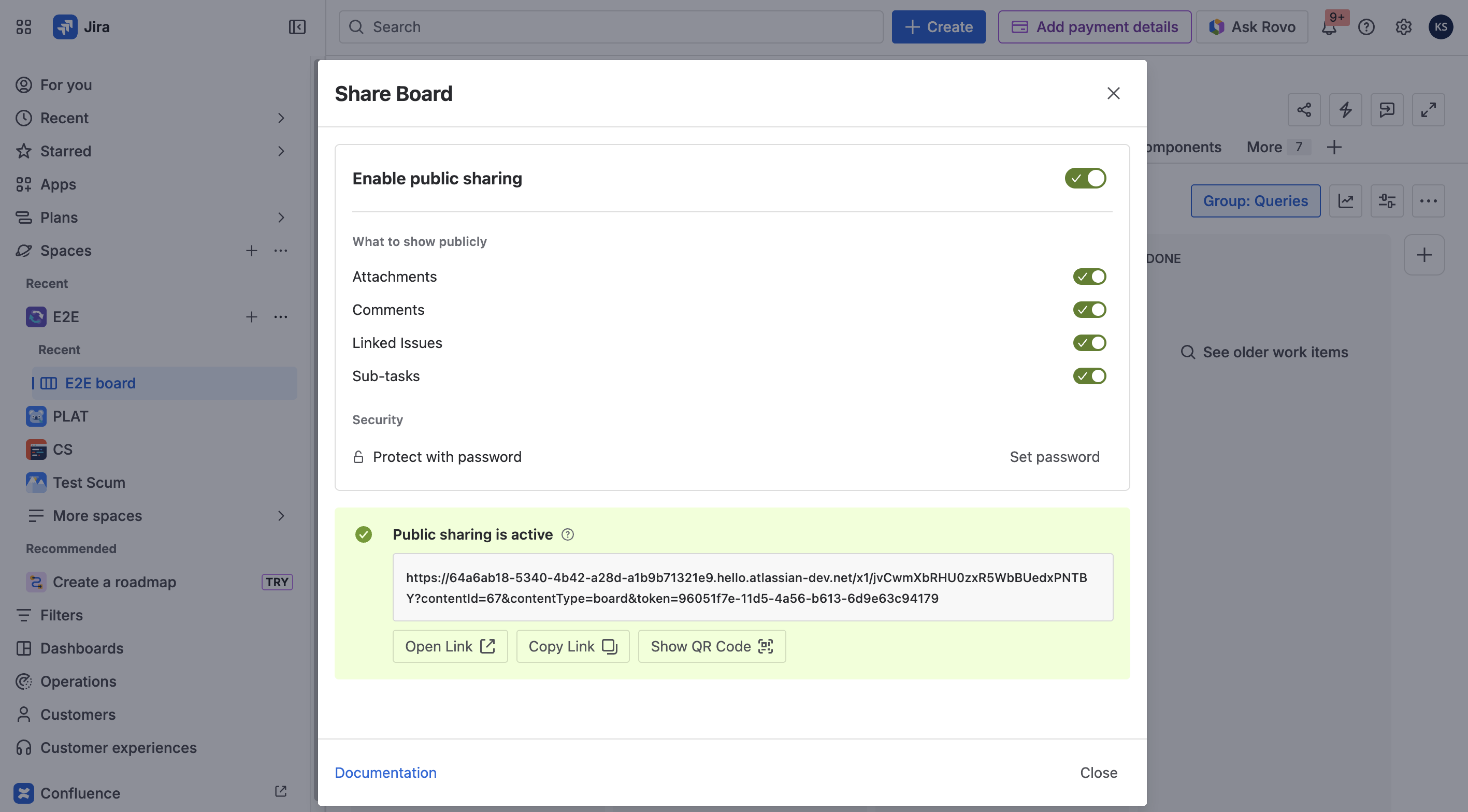 Screenshot: The board sharing modal showing content toggles
Step 4: Share the Link
A unique link is automatically generated for the board. It is accessible to anyone who has the link — no login required.
Copy the link and send it to your external collaborators via email, chat, or any other channel.
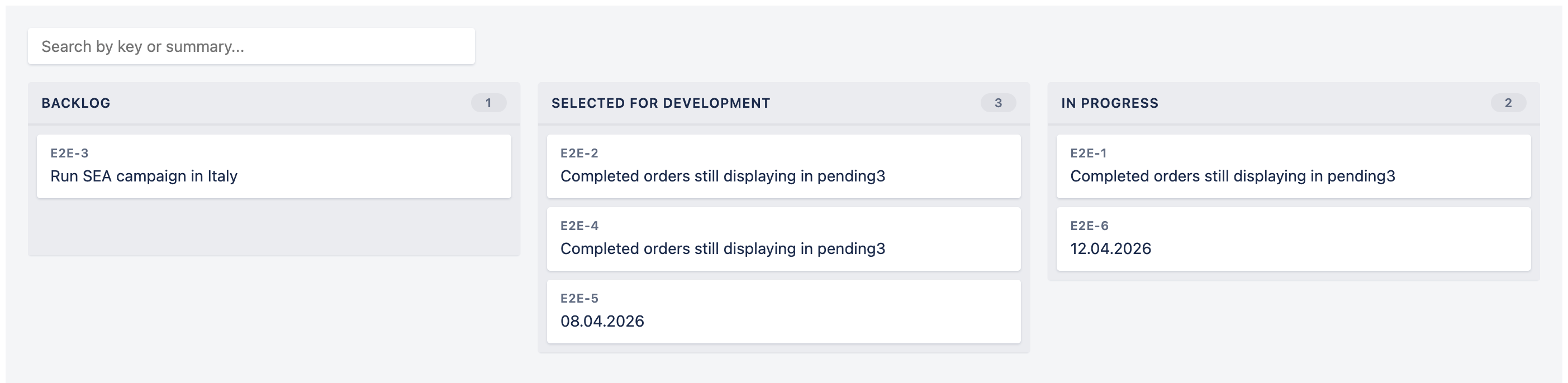
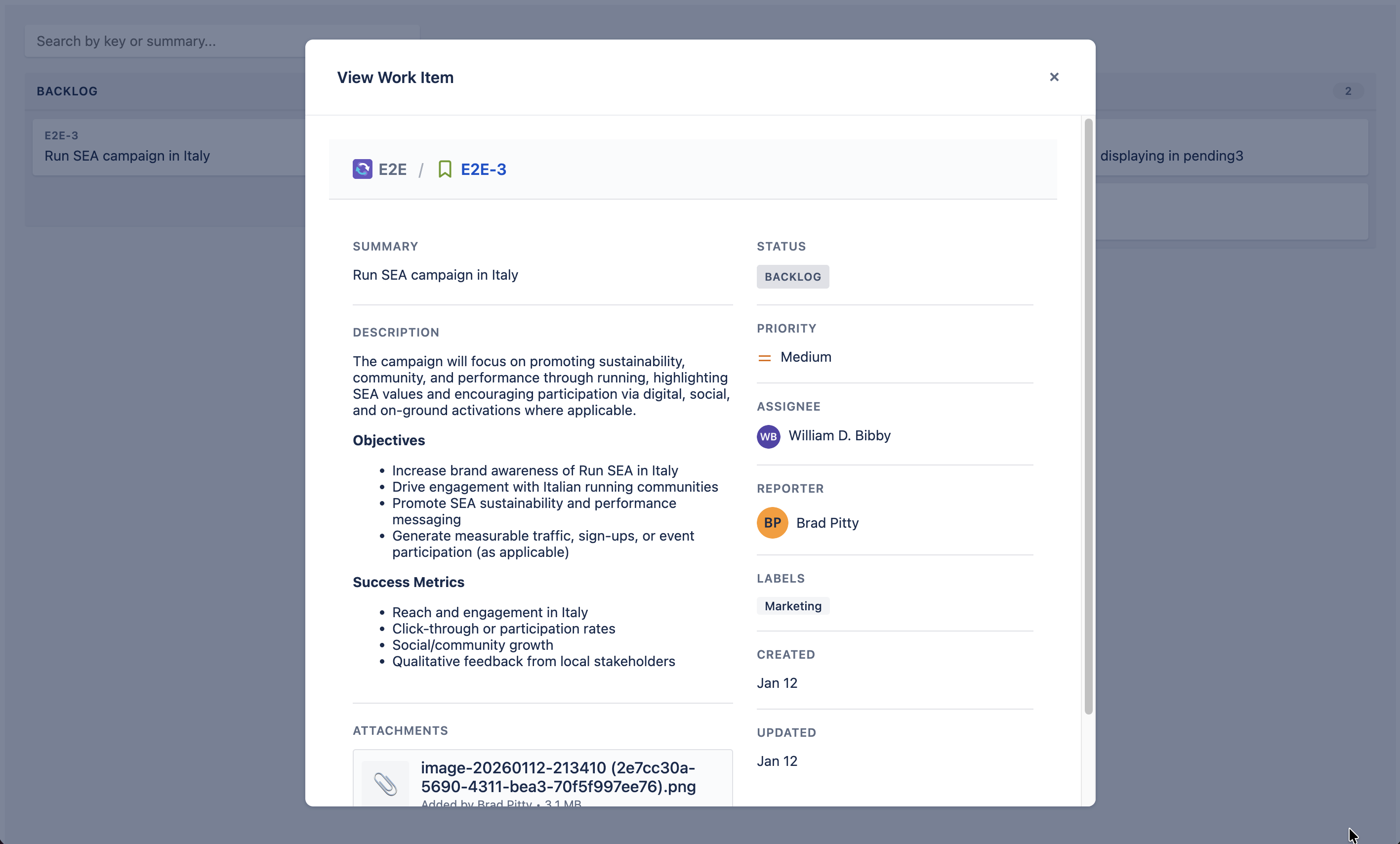 Screenshot: The shared board view showing columns and Work Items
Step 5: (Optional) Add Password Protection
To add an extra layer of security:
- Click "Set password" in the sharing modal.
- Enter a password of your choice.
- Save and copy the link.
Recipients will be prompted to enter the password before the board is displayed. Share the password through a separate, secure channel — for example, a different messaging app from where you sent the link.
What Recipients See
When someone opens the shared board link, they see a read-only Kanban board with:
- Status columns — the same columns visible on the board in Jira.
- Work Items per column — cards showing the Work Item summary and basic details.
- Work Item detail view — clicking any card opens a detail panel showing a fixed set of fields (e.g., summary, description, status, priority, assignee) along with any additional content sections you enabled in Step 3.
Recipients cannot create, edit, or transition any Work Items. The board is strictly view-only.
FAQ
Why can't I see the "Share External Link" option?
The option has been disabled for your account by your Jira administrator in the app configuration. Contact your admin and ask them to grant your account or group the board sharing permission. Admins manage this under Jira Settings → Marketplace Apps → Share Public Link → Permissions.
How do I generate a new link if the old one was compromised?
Open the board, click the three-dot menu, and select "Share External Link". Disable the current sharing, then re-enable it. A brand-new unique link is generated each time, and the previous link stops working immediately.
Can I use a board link shared by a colleague?
Yes. A board has only one active shared link at a time. Any Jira user with access to the board can open the sharing modal, copy the same active link, and forward it to external collaborators — there is no need to generate separate links per person.